
Change just one website
Visit the website and open the extension popup. Choose a mode and click Apply to this site. This saves a rule for that website only.
LOCATION CONTROL FOR CHROME
Location Guard Next lets you choose what location Chrome shares when a website asks where you are.
Send a place you choose, make your location less precise, block the request, or share your real location. Set one choice for most websites, then add exceptions for individual sites.
Requires Chrome 120 or later · No extension account needed
THE FOUR MODES
Click the extension’s toolbar icon to open its popup. Choose a mode, then click Apply to this site to save that website’s rule.
WEBSITE RECEIVES
Choose a city, place a pin on the map, or select a saved place. When the website asks for your location, it receives the latitude and longitude of that place.
Choose London. The website receives London’s location, regardless of where your device is.
Fixed does not ask for your real location. It can return your chosen place even when Chrome would normally deny location access. Choose Block if you want to share no coordinates through the location API.
These buttons are a demonstration. Use the installed extension to change what websites receive.
DEFAULTS & WEBSITE RULES
Your default applies to websites without their own rule. A site rule saves a choice for one website. When that rule is in effect, the website uses it instead of the default.
Websites use London unless you give them a different rule.
*Chrome must also allow this website to access your location. The website names here are examples.
Visit the website and open the extension popup. Choose a mode and click Apply to this site. This saves a rule for that website only.
Delete the website’s rule in Settings to use your default again. A temporary rule stops applying when its time runs out. Changing the default does not change websites that still have their own rules.
Use the exact website name shown in the popup. For example, example.com and www.example.com need separate rules. Content embedded inside a page follows the rule for the main website.
While paused, the extension lets Chrome handle location requests normally. Websites with permission may receive your real location. Your saved rules stay in place and take effect when you turn protection back on.
Open the extension popup from Chrome’s toolbar, then click Settings ↗ at the bottom. The new tab has four groups in its left sidebar. Expand a group and choose its subsection.
The headings below match that sidebar. The section names, buttons, and fields shown in bold match the extension’s labels.
See the actual controls below. Select a screenshot to open it at full size.
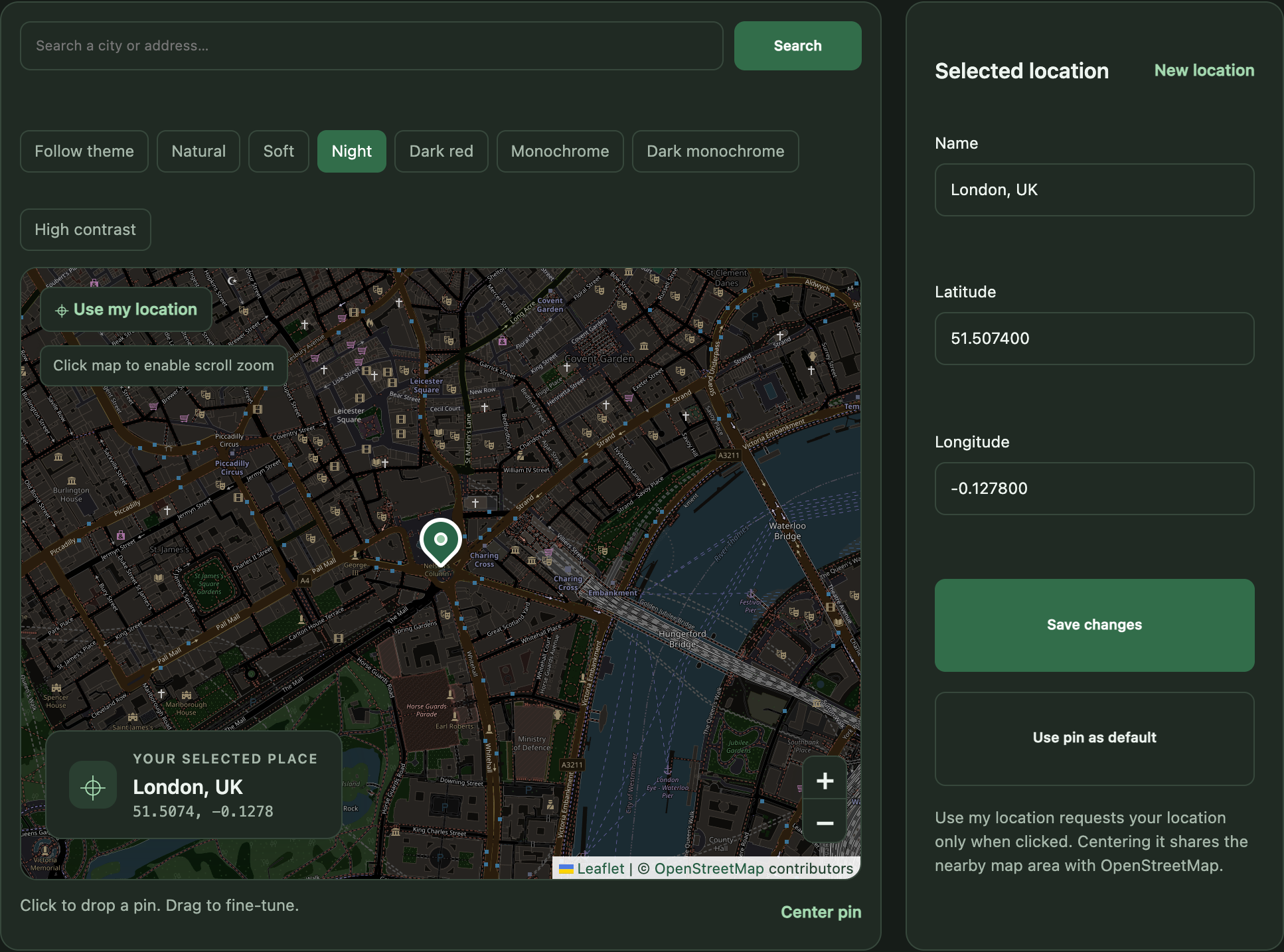
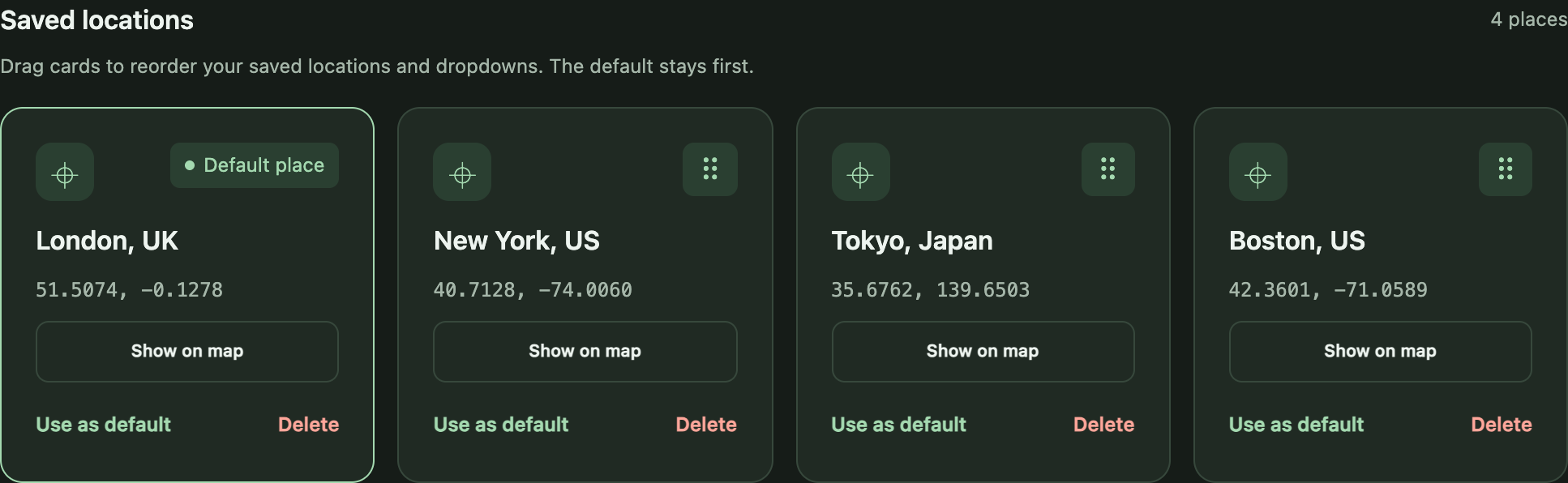
Version 1.18.0 in dark theme. The saved places shown are public city locations.
| I want to… | Where to go | What to do |
|---|---|---|
| Save a new place | Map & search, then Selected location | Click New location. Search for a place or move the pin. Enter a Name, then click Save location. This adds it to your saved places; it does not apply it to a website. |
| Edit a saved place | Saved places, then Selected location | Click the saved place’s card. Change its name or pin, then click Save changes. Rules that use this named place will use its updated coordinates. |
| Make a saved place my default | Saved places | Click Use as default on the place’s card. This sets your default to Fixed with that place. Existing website exceptions stay in control for those sites. |
| Use the selected pin as my default | Selected location | Click Use pin as default. This saves the place and sets it as your Fixed default. |
| Find my current position on the map | Map & search | Click Use my location. This asks for your device location and moves the pin. Choose a save or apply action afterward. It does not turn on Real mode. |
Saved places is the sidebar link; the card area’s heading says Saved locations. Editing a named place updates rules that use it. A pin applied directly to one website keeps a separate copy of its coordinates. Centering the map on your current position shares that map area with OpenStreetMap.
See the actual controls below. Select a screenshot to open it at full size.
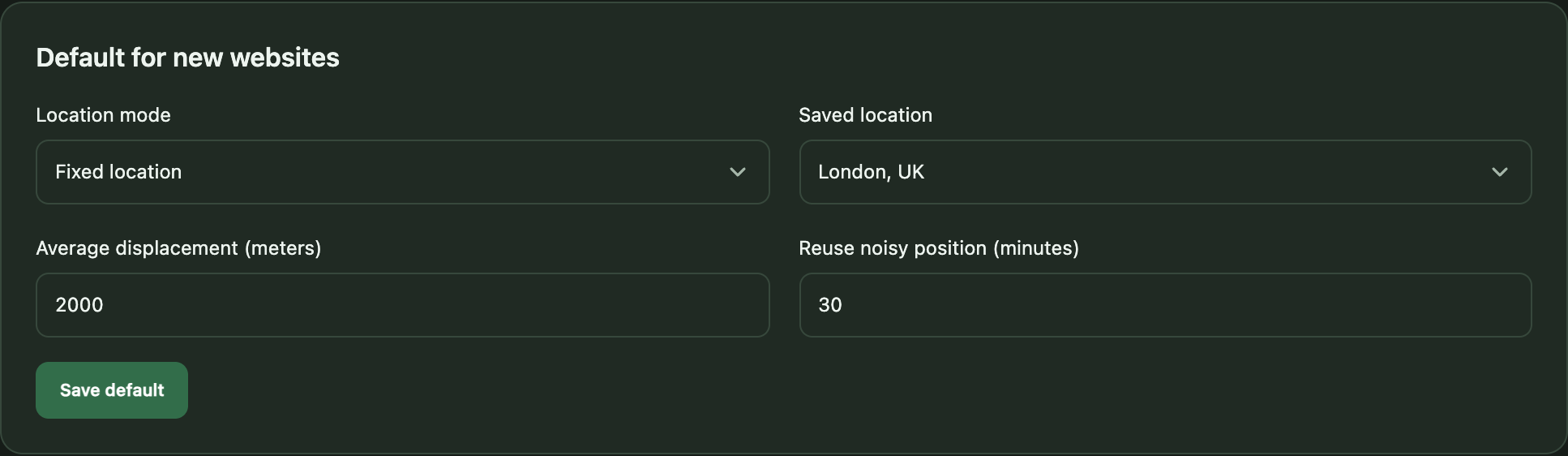
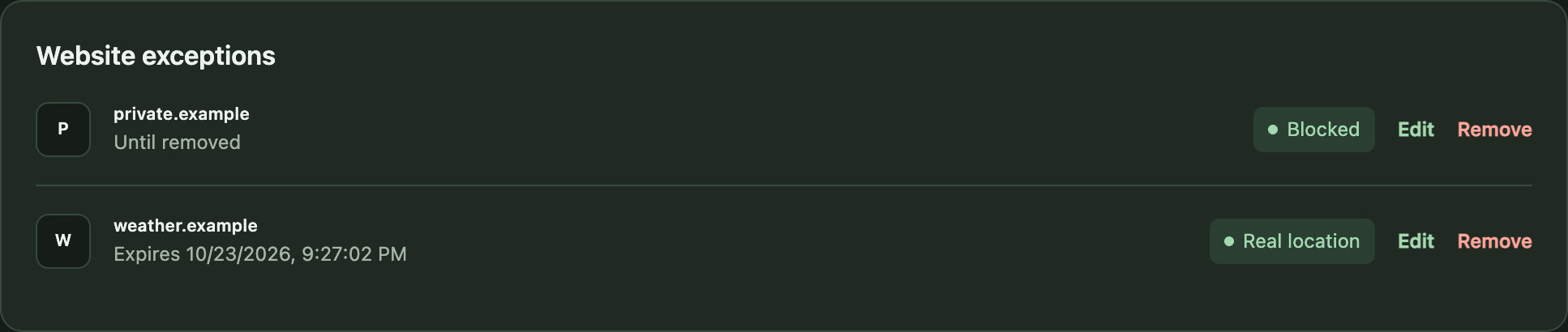
Version 1.18.0 in dark theme. Website names and rules are examples, not browsing history.
| I want to… | Where to go | What to do |
|---|---|---|
| Change my usual location behavior | Default policy → Default for new websites | Choose Location mode. For Fixed, choose a Saved location. Click Save default. Websites without an active exception use this choice. |
| Adjust Approximate mode | Default policy → Default for new websites | Choose Approximate location. Set Average displacement and Reuse noisy position (minutes), then click Save default. The first sets the average random shift; the second sets how long a result is reused. |
| Add a rule for one website | Add exception → Add a website exception | Enter Website domain, choose Location mode and, for Fixed, Location. Set Expiration, then click Save site rule. |
| Change or remove a website’s rule | Website exceptions | Click Edit beside the website, make changes in the form, then click Save site rule. Click Remove to let that website use your default again. |
Average displacement shows meters or feet based on your distance units. It is an average, not a maximum distance. New Approximate exceptions copy the default distance and reuse time; existing exceptions keep their values. Match the exact website name: example.com and www.example.com are separate. A temporary rule returns to the default when it expires.
See the actual controls below. Select a screenshot to open it at full size.
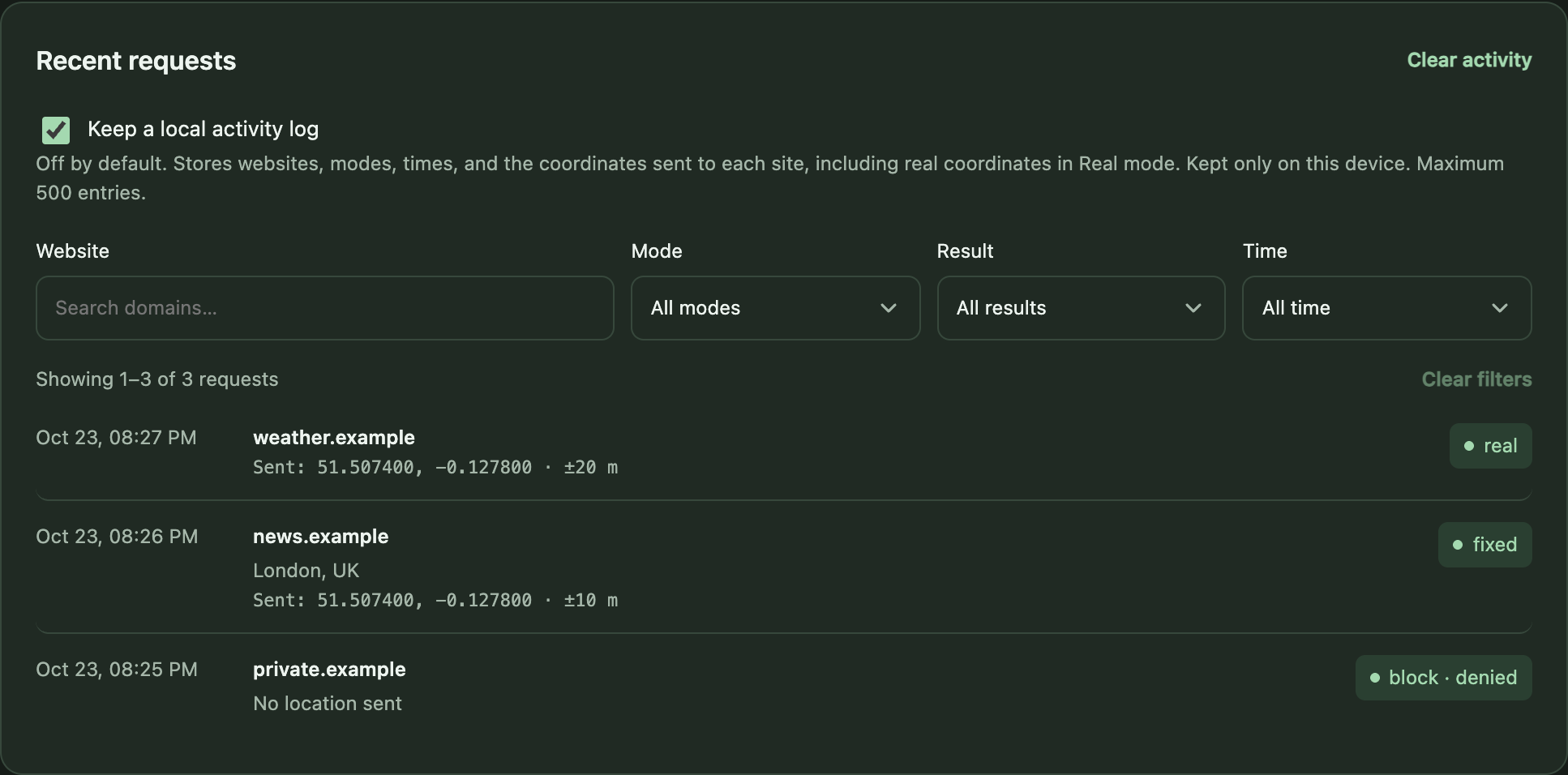
Example records were added only for this screenshot. Logging is off by default. No real device location or personal browsing history was used.
| I want to… | Where to go | What to do |
|---|---|---|
| Check what a website receives | Check protection | Follow the instructions to test a regular website. Choose Fixed or Block in the popup, apply it, then refresh the website and request location again. The extension’s own settings tab cannot test website protection. |
| Turn activity logging on or off | Activity log → Recent requests | Use Keep a local activity log. Logging starts off. Turning it off deletes existing history. Clear activity deletes the history without changing the logging switch. |
| Find a recorded request | Activity log → Recent requests | Use Website, Mode, Result, and Time to filter the list. Clear filters resets the view; it does not delete requests. |
| Stop reusing Approximate results | Approximate cache → Approximate location cache | Click Clear cache. The next request creates a new randomly shifted location. Frequent clearing can weaken privacy by giving websites more different results to compare. |
The activity log holds up to 500 requests on your device. It includes coordinates sent to websites, which can be your real coordinates in Real mode or while protection is paused. Opening a recorded location on the map shares that recorded area with OpenStreetMap.
| I want to… | Where to go | What to do |
|---|---|---|
| Use miles instead of kilometers | Measurements | Change Distance units to Metric or Imperial. This affects distance and accuracy displays. Latitude and longitude stay in decimal degrees. |
| Change the extension or map colors | Appearance | Choose Theme for the popup and settings pages. Choose Map color separately for both maps. System follows your device’s theme; Follow theme switches the map between Soft and Night. |
| Show more requests on each page | Activity | Set Requests per page to 10, 25, or 50. This only changes the activity list’s page size; it does not turn logging on. |
| Turn protection back on automatically | Protection | Set Resume protection after pausing to Manually, 5 minutes, 15 minutes, or 60 minutes. Changing this while paused restarts the timer. The Protection switch in the popup pauses or resumes protection now. |
| Back up or restore my setup | Backup & restore | Click Export backup to download your places, rules, and preferences. To restore, use Choose a backup to restore, review the number of places and rules, then click Restore backup. Restoring replaces your current settings. |
Changes to units, appearance, page size, and automatic resume save immediately; there is no Save button. Backups contain coordinates and website names but no activity history. Keep them private.
Here are the controls in the extension. Select any screenshot to open it at full size.
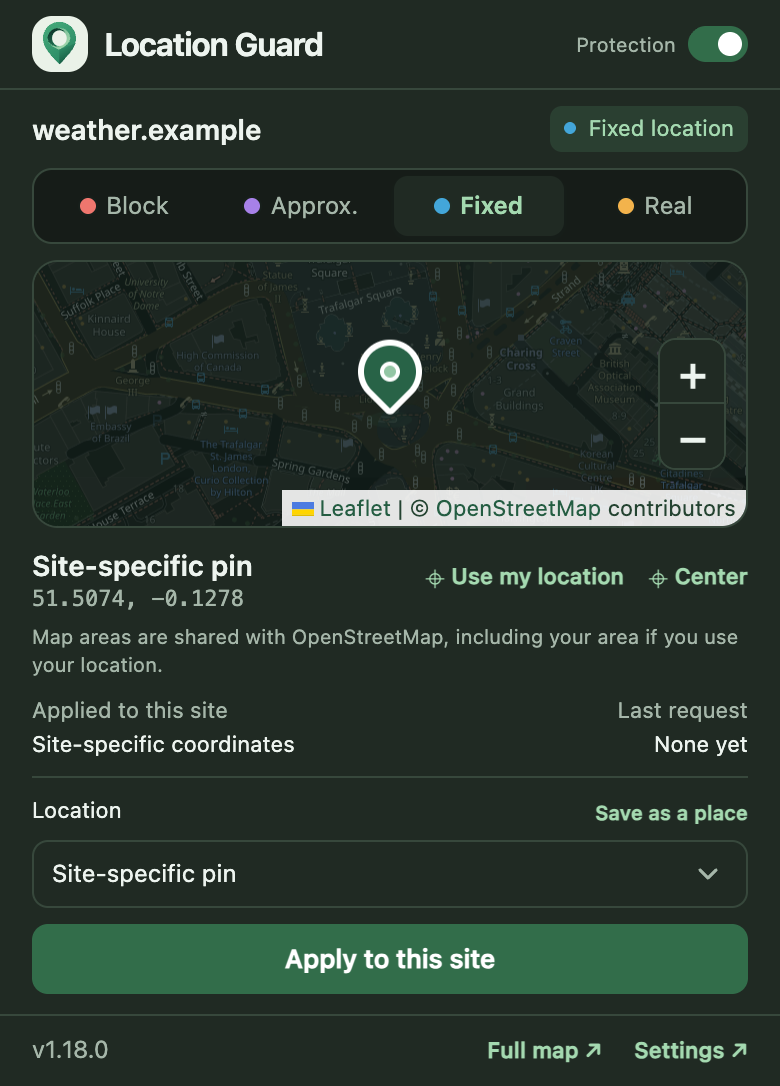
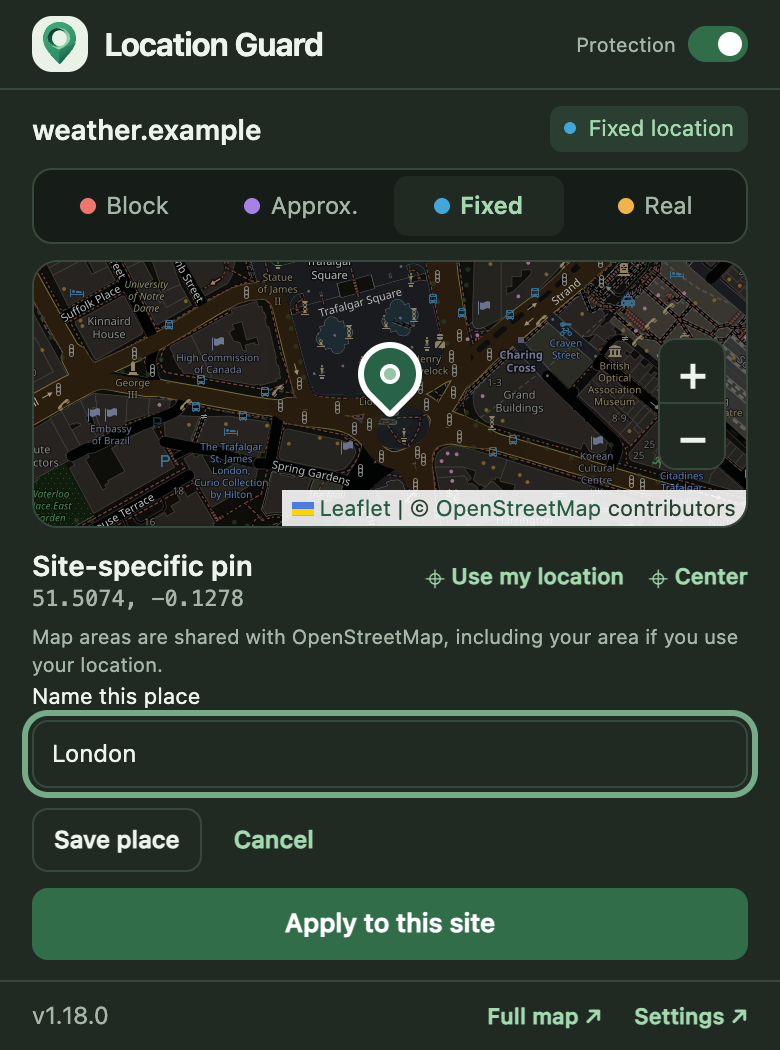
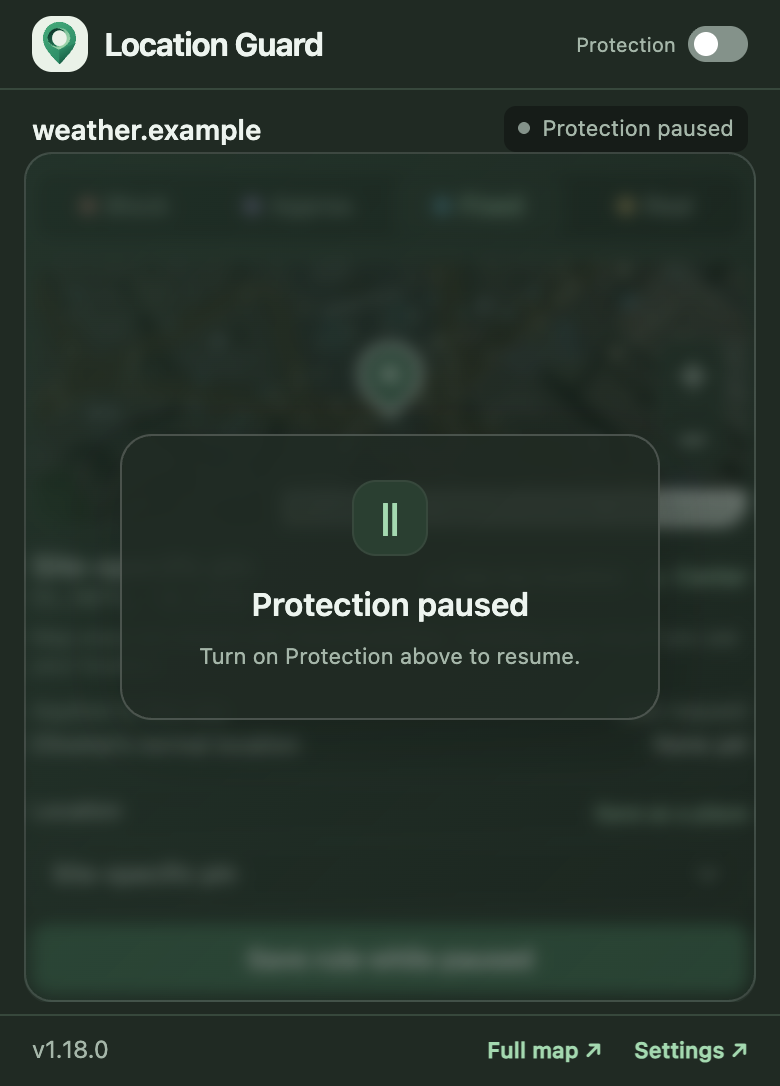
Screenshots show version 1.18.0 in dark theme, with an example website and a London map pin.
| I want to… | Where to go | What to do |
|---|---|---|
| Change this website’s location | Choose Fixed, Approx., Block, or Real | Select a mode. For Fixed, choose a place under Location or move the pin. Click Apply to this site to save the rule. Moving the pin alone does not change the website’s rule. |
| Keep a pin for reuse | Save as a place | After choosing a pin in Fixed mode, click Save as a place, enter Name this place, then click Save place. This saves the place without changing the website’s applied rule. |
| Pause protection for all websites | Protection switch in the header | Turn it off to pause or on to resume. While paused, Chrome handles location requests normally; websites with permission may receive your real location. Your saved rules are kept. |
Full map ↗ opens the larger map. When opened for a website, it can show a Use pin for… button with that website’s name. Settings ↗ opens the preferences tab described above.
A rule change affects the next location request. It cannot erase a location the website already received. Refresh the page and ask it to use your location again if needed. The website may also use your IP address or other clues.
PRIVACY & LIMITS
Saved places, preferences, and website rules stay in Chrome on your device. The extension has no ads, analytics, or accounts. It records activity only if you turn logging on.
OpenStreetMap supplies the map images, so it receives your IP address and the area you view. If you submit a place search, the search provider, Photon, receives your IP address and the words you search for.
The extension changes Chrome’s JavaScript location API—the feature websites use to ask the browser for your location. It does not hide your IP address or change your timezone or device settings. Some websites can work around it. It cannot run on Chrome’s internal pages or the Chrome Web Store.
The log stores the latest 500 requests on your device, including the coordinates sent to each website. Real mode and paused requests may record your real location. Approximate mode records only the shifted location. Turning logging off deletes this history. The extension does not claim a formally audited privacy guarantee.
No. It changes the answer to browser location requests. Your IP address, account details, timezone, and other information may still help a website work out where you are.
Fixed and Block do not ask for your real location when a website requests it. Approximate and Real need access to your device location, with Chrome’s normal permission checks.
The map’s Use my location button asks for your position only after you click it. While protection is paused, Chrome handles requests normally, so websites with permission may receive your real location.
The website may have kept a location it received earlier. Refresh the page and ask it to use your location again. Check the website name and rule shown in the extension popup. The site may also be estimating your location from your IP address or other information.
It works on ordinary HTTP and HTTPS websites, including content embedded in their pages. Chrome does not allow it to run on internal pages or the Chrome Web Store. Some websites may work around the extension.
Fixed can return your chosen place even when Chrome would normally deny location access. Choose Block if you want to return no coordinates through the location API.
Yes. Use Backup & restore to download a file containing your places, rules, and preferences. Activity history and temporary results are left out. Keep the file private because it includes coordinates and website names. Review an imported backup before restoring it: it will replace your current settings.
No. Location Guard Next is an independent extension and is not affiliated with the original Location Guard developer.
FEEDBACK & SUPPORT
Share what works well, what could be clearer, or an idea you’d like us to consider. You can also use this form to report a problem.
Your submission is stored privately for review. You do not need to give your name or email. If you want a reply, add an email address below.
Get Location Guard Next from the Chrome Web Store.